Adding a Decal

The Decal object adds flat detail to surfaces in your design, such as cracks, stains, dirt, scattered leaves, small rocks, vents, and other surface markings. Decals are similar to Overlays and Road Decals, but they can be placed on most 3D surfaces, not just terrain or roads.
Note: Decals are a 3D rendering effect and appear in the Perspective view only. They do not appear in the Plan view.
How decals are applied
A decal affects surfaces inside its influence box (an axis-aligned 3D box). Only the parts of surfaces that fall within this box will display the decal—anything outside the box is clipped. You can adjust the box Width, Length, and Height to control where the decal appears.
To add a decal:
- From the Utilities tab, click Add Decal.
- Click the picture of the default decal that appears to the right of the screen, and then select the decal you would like to use.
- Click a surface in the Perspective view to place the decal.
- If needed, adjust the decal's influence box so it covers only the surfaces you want to affect.
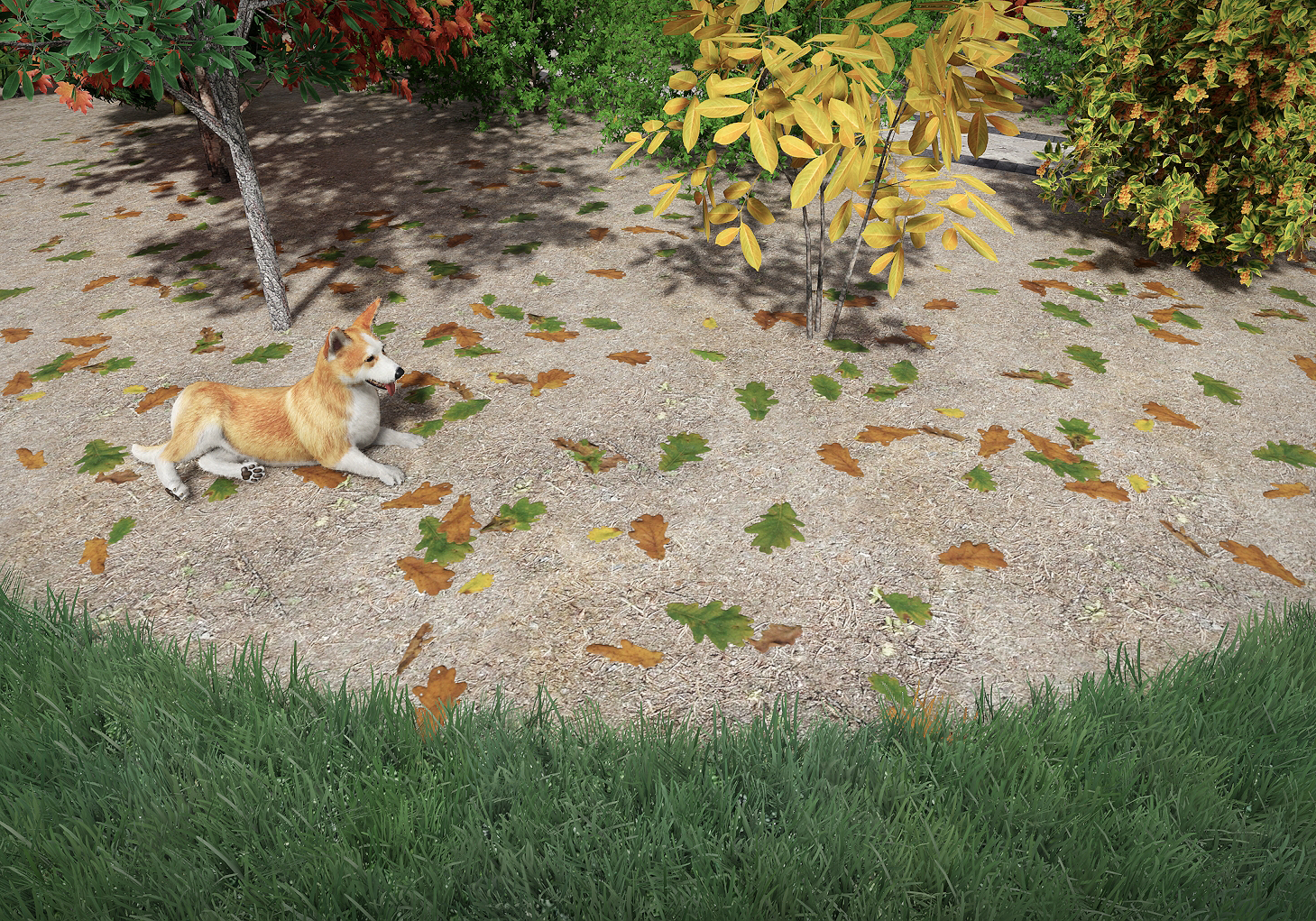
In the design below, decals were used to add fallen leaves. Because the decal's influence box overlapped the dog, the Receive decals option was unchecked for the dog so the leaves do not appear on its fur.
Controlling the render order
When multiple decals overlap, Render order determines which decals appear on top. Decals with a higher render order value are drawn on top of decals with a lower value.
Importing custom decals
Custom decals can be imported from images taken with a digital camera or downloaded online. To import a custom decal, run the Picture Import Wizard and set the Picture Type to Decal.
Tips:
- Decals work best with images that include transparency (for example, leaves, cracks, and stains), allowing them to blend naturally with the surface below.
- Decals are easiest to place and adjust in the Perspective view where you can clearly see the target surfaces.
- In most cases, you can control what receives the decal by adjusting the influence box. If the box is difficult or impractical to set up, you can prevent specific objects from being affected by unchecking Receive decals in the Advanced Object Properties dialog.